Ever feel like LinkedIn is a time sink? You’re not alone. For me, prospecting, outreach, and engagement on LinkedIn used to eat up hours until I started testing Chrome extensions. These tools aren’t just shortcuts - they’re lifesavers for cutting repetitive tasks, like manual searches, copying data, or drafting comments. With LinkedIn now hosting over 1 billion active professionals, these extensions are how top recruiters, sales teams, and creators stay ahead.
Here’s the deal: I’ve tested over 50+ LinkedIn tools, and these 10 are the ones that actually deliver. Whether you need faster prospecting, smarter outreach, or AI-powered engagement, there’s something here for you. Tools like Instant Search can cut lead search time by 80%, while Kanbox lets you scrape up to 2,500 leads daily. On the engagement side, AI tools like Comment Generator or Replya make staying visible way easier without sounding robotic.
Quick Overview of the Top Picks:
- Instant Search: Fast profile lookups without page reloads.
- Kanbox: Combines LinkedIn CRM and outreach in one tool.
- Comment Generator: AI-crafted comments with tone options.
- LinkedIn to Airtable: One-click profile data exports.
- Alara: Streamlines content creation and scheduling.
Bottom line? If you’re serious about LinkedIn, these extensions save hours and keep you focused on what matters - building connections and closing deals.
Quick Comparison: The 10 Best LinkedIn Chrome Extensions in 2026
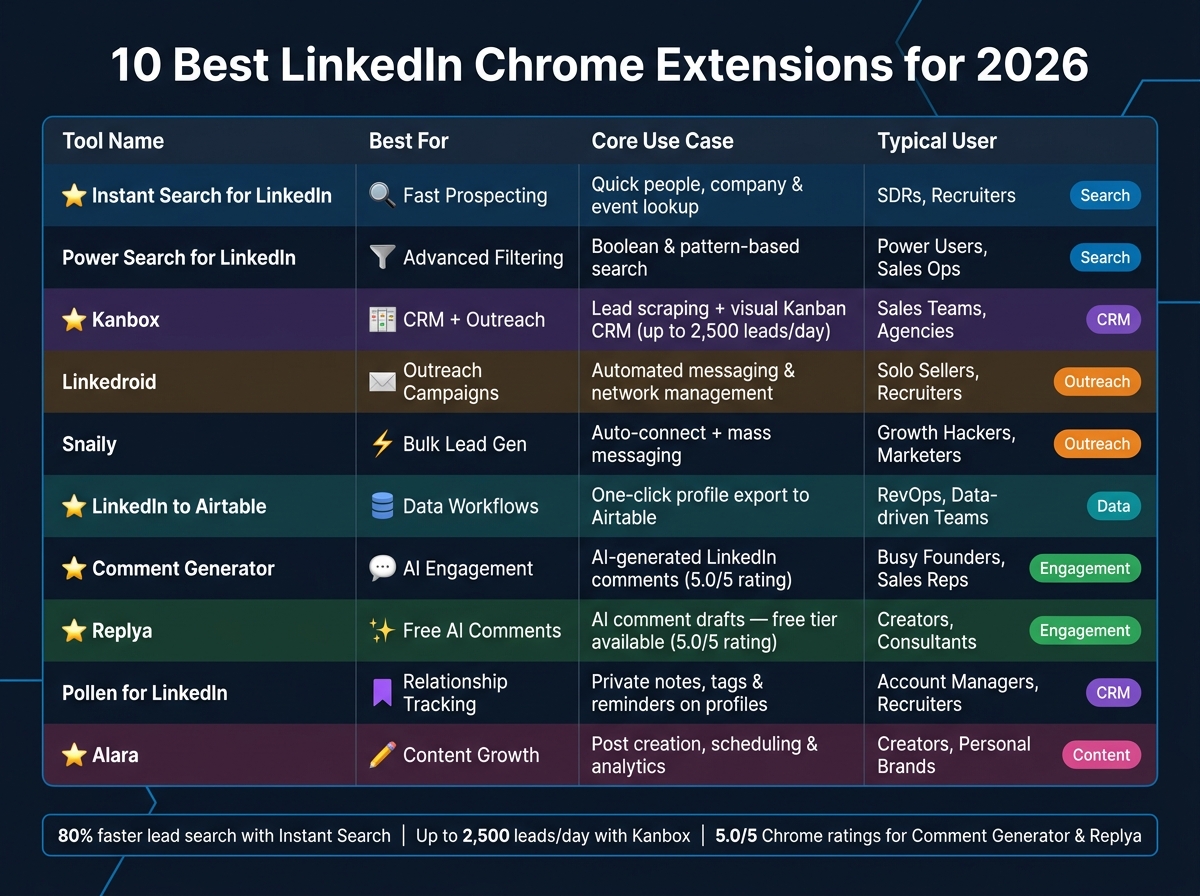
10 Best LinkedIn Chrome Extensions for 2026: Side-by-Side Comparison
When it comes to LinkedIn workflows, the right Chrome extension can save hours. Whether you're tackling prospecting, outreach, or engagement, these tools cut down on repetitive tasks like manual searches or data entry. Here’s a snapshot of how the top 10 extensions stack up:
| Tool | Best For | Core Use Case | Key Features | Typical User |
|---|---|---|---|---|
| Instant Search for LinkedIn ⭐ Best for Search | Fast prospecting | Quick people, company & event lookup | Instant results overlay, keyboard shortcuts, no page reloads | SDRs, recruiters |
| Power Search for LinkedIn | Advanced filtering | Boolean & pattern-based search | Complex filter combos, search templates, Sales Navigator integration | Power users, sales ops |
| Kanbox ⭐ Best for CRM + Outreach | Pipeline management | lead scraping + visual Kanban CRM | Up to 2,500 leads/day, unified inbox, campaign sequencing | Sales teams, agencies |
| Linkedroid | Outreach campaigns | Automated messaging & network management | Drip sequences, connection management, reply detection | Solo sellers, recruiters |
| Snaily for LinkedIn Auto Connect | Bulk lead gen | Auto-connect + mass messaging | Personalized connection requests, bulk messaging, lead targeting | Growth hackers, marketers |
| LinkedIn to Airtable ⭐ Best for Data Workflows | CRM data entry | One-click profile export to Airtable | Field mapping, bulk export, instant sync | RevOps, data-driven teams |
| Comment Generator for LinkedIn ⭐ Best AI Comment Tool | Engagement at scale | AI-generated LinkedIn comments | Multiple tone options, post analysis, one-click insert | Busy founders, sales reps |
| Replya ⭐ Best Free AI Comments | Free engagement boost | AI comment drafts + assistant | Free tier available, context-aware replies, quick editing | Creators, consultants |
| Pollen for LinkedIn | Relationship tracking | Notes, tags & reminders on profiles | Local storage, private notes, follow-up reminders | Account managers, recruiters |
| Alara ⭐ Best for Content Growth | LinkedIn content strategy | Post creation, scheduling & analytics | Content calendar, engagement analytics, AI writing assist | Creators, personal brands |
Each of these tools shines in its own way. For example, Kanbox is perfect if you’re looking for a combo of CRM features and automation without the bulk of traditional software. LinkedIn to Airtable is unbeatable for teams that rely on no-code tools or need seamless data exports. And if engagement is your priority, Replya offers a free way to start with AI comments, while Comment Generator gives you more control for heavy daily use.
sbb-itb-b3cfc51
1. Instant Search for LinkedIn – Best for Fast Prospecting
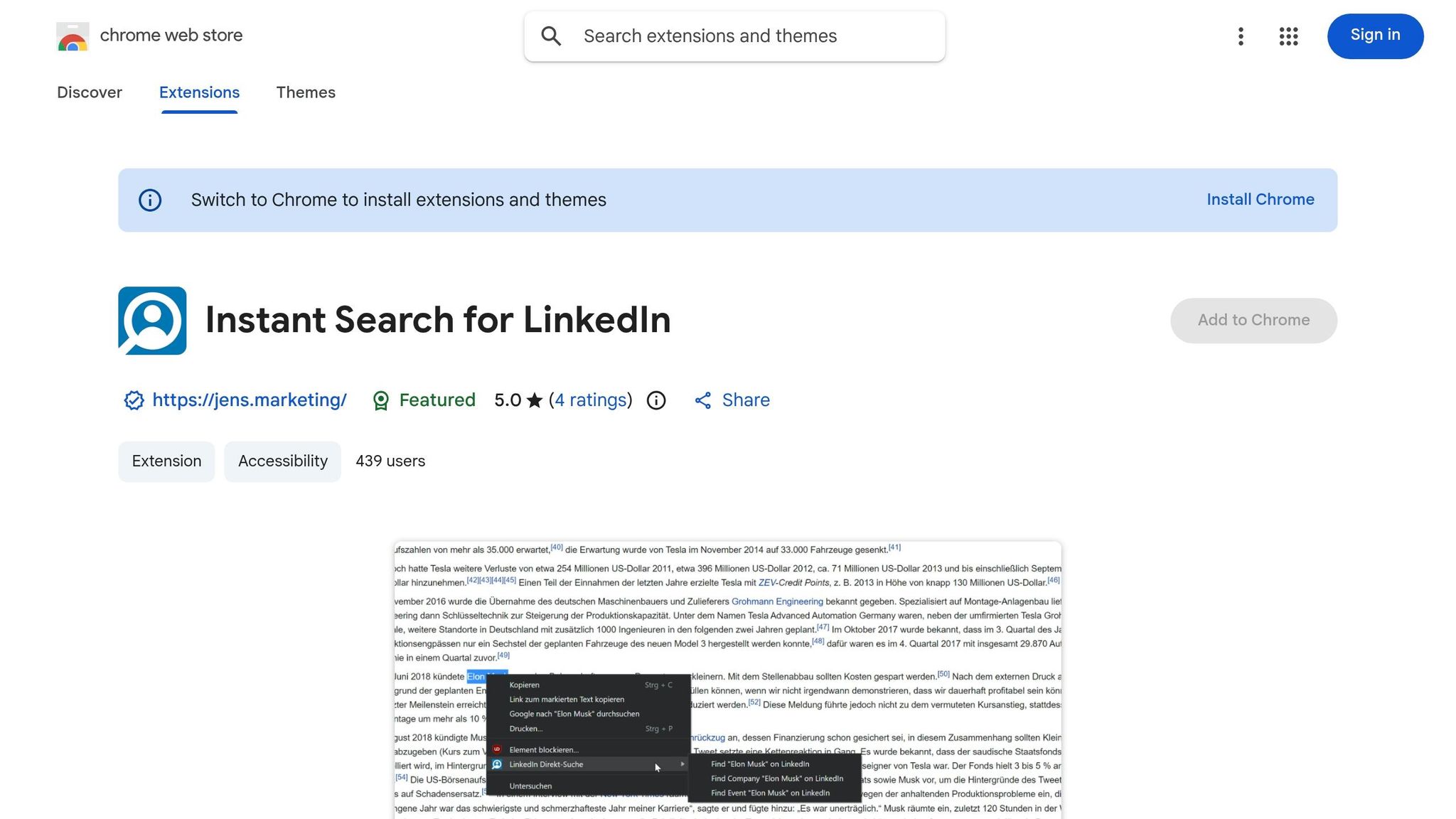
If you've ever felt bogged down by LinkedIn's manual search process, Instant Search for LinkedIn might be the tool that changes the game for you. It's all about speed - this extension overlays a lightning-fast search interface directly on LinkedIn, letting you find people, companies, or events without those frustrating page reloads. For anyone who spends hours prospecting, the time savings add up fast.
The real magic? Its keyboard-driven workflow. You can shave off 10–15 seconds per search, which might not sound like much, but for high-volume users, it’s a serious productivity boost.
Key Features
- Instant results overlay that shows profiles without navigating to a new page.
- Keyboard shortcuts for seamless searching and cycling through results.
- Unified search across people, companies, and events from one interface.
- No page reloads, ensuring your session stays smooth and uninterrupted.
Pros
- Slashes time wasted on repetitive LinkedIn searches.
- Lightweight and clutter-free interface that feels natural to use.
- Perfect for both quick lookups and heavy-duty prospecting sessions.
- Easy to get started - most users are up and running in minutes.
Cons
- Focuses solely on search speed - no outreach, CRM, or messaging tools included.
- Not a substitute for Sales Navigator if deep filtering is part of your workflow.
- Occasional LinkedIn users may not see much value from the tool.
Best for you if…
- You're a recruiter or SDR running 20+ searches daily and want to minimize wasted clicks.
- Your workflow revolves around searching, but you handle outreach and CRM separately.
- You need a simple, no-frills extension that excels at one task without overcomplicating things.
Up next: Power Search for LinkedIn, which takes advanced filtering to the next level.
2. Power Search for LinkedIn – Best for Advanced Filtering and Boolean Search
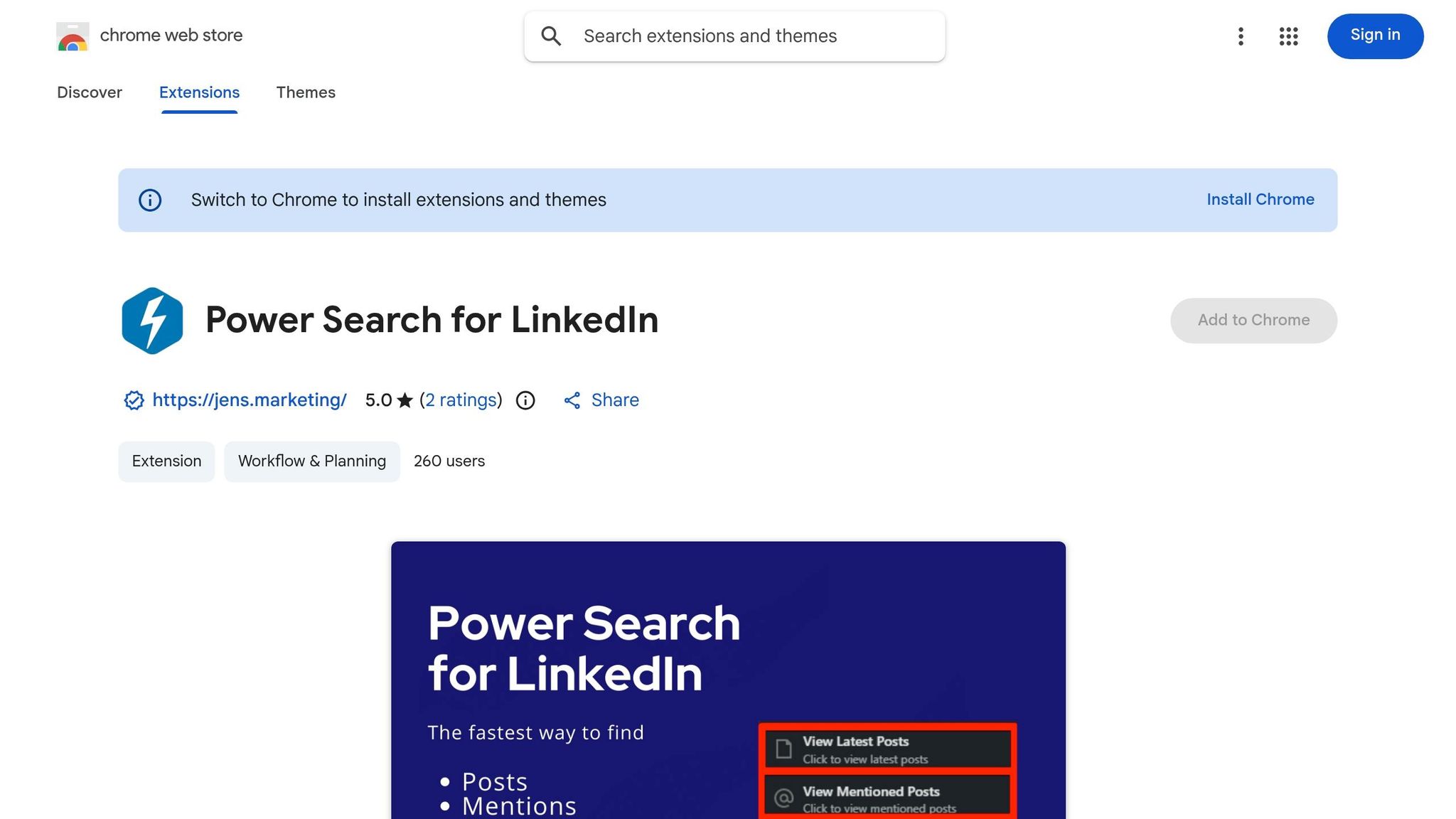
Ever feel like LinkedIn’s search is just a bit too basic for finding those hard-to-reach professionals? Power Search for LinkedIn steps in to solve that. It layers advanced filters and Boolean logic right into LinkedIn’s interface, giving you a smarter, more precise way to find exactly who you need. No more relying on LinkedIn’s default filters that often leave you wading through irrelevant profiles.
The standout feature? Boolean search construction. You can mix and match operators like AND, OR, and NOT to build ultra-specific queries. For recruiters, SDRs, or sales managers juggling criteria like role, industry, seniority, and location, this tool is a lifesaver. It slashes through the noise, turning what used to be a tedious, manual process into something fast and efficient.
Key Features
- Boolean search string builder for crafting detailed, multi-condition searches.
- Advanced filters that go beyond LinkedIn’s standard options.
- Speeds up prospecting by cutting out irrelevant profiles.
- Ideal for targeting specific roles, industries, or seniority levels.
Pros
- Pinpoints the most relevant profiles, saving tons of time.
- Perfect for high-specificity searches.
- Easy to use if you’re familiar with Boolean logic.
- Works directly within LinkedIn - no extra platform to juggle.
Cons
- If Boolean syntax is new to you, there’s a small learning curve.
- Focused only on refining searches - doesn’t handle outreach or CRM tasks.
- Casual LinkedIn users might not find it as useful.
Best for you if…
- You’re a recruiter or sales pro needing precise targeting.
- Your searches involve multiple layers of filters at once.
- You want to pair it with Instant Search for LinkedIn for those times when speed alone isn’t enough.
3. Kanbox – Best for LinkedIn Automation and CRM
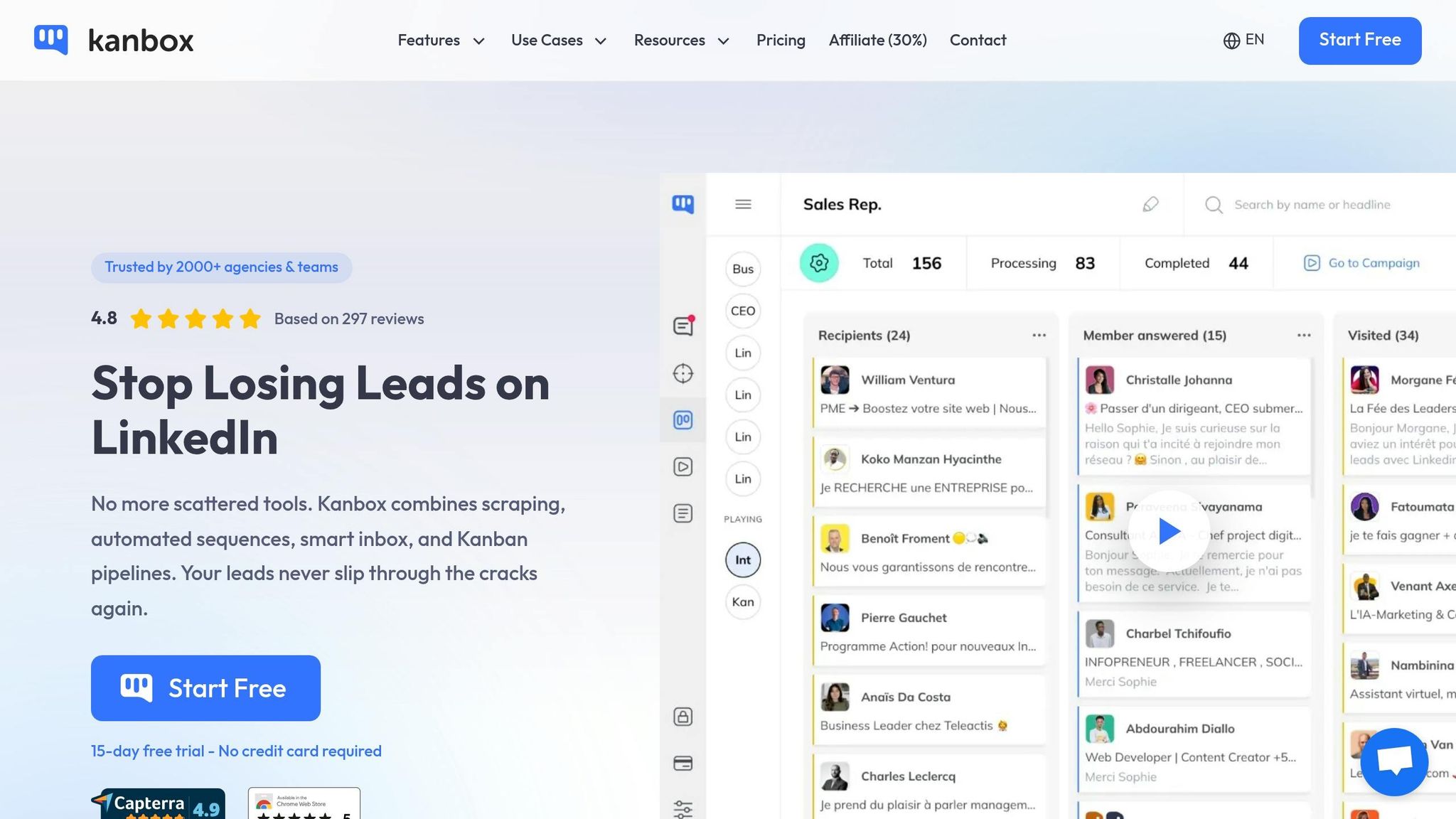
Tired of juggling tabs while managing LinkedIn leads? Kanbox keeps everything in one place by integrating LinkedIn CRM right into your browser. You can track prospects, manage conversations, and set up outreach sequences - all without leaving LinkedIn.
One standout feature is Kanbox's lead scraping. It pulls contacts straight from LinkedIn search results or Sales Navigator into its CRM or even exports them to a spreadsheet in seconds. No more wasting time on manual copy-pasting. Plus, you can create multi-step outreach sequences - like sending connection requests followed by timed follow-ups - that are designed to mimic human behavior, reducing the risks of automated activity. For those focusing on high-touch engagement, using AI-driven personalized messages can further humanize your approach.
Key Features
- Built-in LinkedIn CRM to organize prospects and conversations seamlessly.
- Lead scraping directly from LinkedIn or Sales Navigator into its CRM or spreadsheets.
- automated outreach sequences with connection requests and follow-ups.
- Automation designed to mimic human behavior, keeping your account safer.
Pros
- Keeps everything within LinkedIn, so no need for an external CRM.
- Saves time by scraping leads directly from search results.
- Easy-to-set-up outreach sequences, even for non-technical users.
- Fully compatible with Sales Navigator, making it ideal for heavy LinkedIn users.
Cons
- Its feature-rich design might feel overwhelming for beginners.
- Automation always carries some risk if you push activity volumes too high.
- Could be overkill if you're only doing occasional outreach.
Best for you if…
- You're a sales manager, SDR, or recruiter frequently prospecting on LinkedIn.
- You need a tool that combines lead capture and outreach follow-up without requiring a separate CRM.
- You’re using Sales Navigator and want to generate more structured and actionable results.
Next, let’s dive into how Linkedroid takes outreach campaigns to the next level.
4. Linkedroid – Best for Outreach Campaigns and Network Management
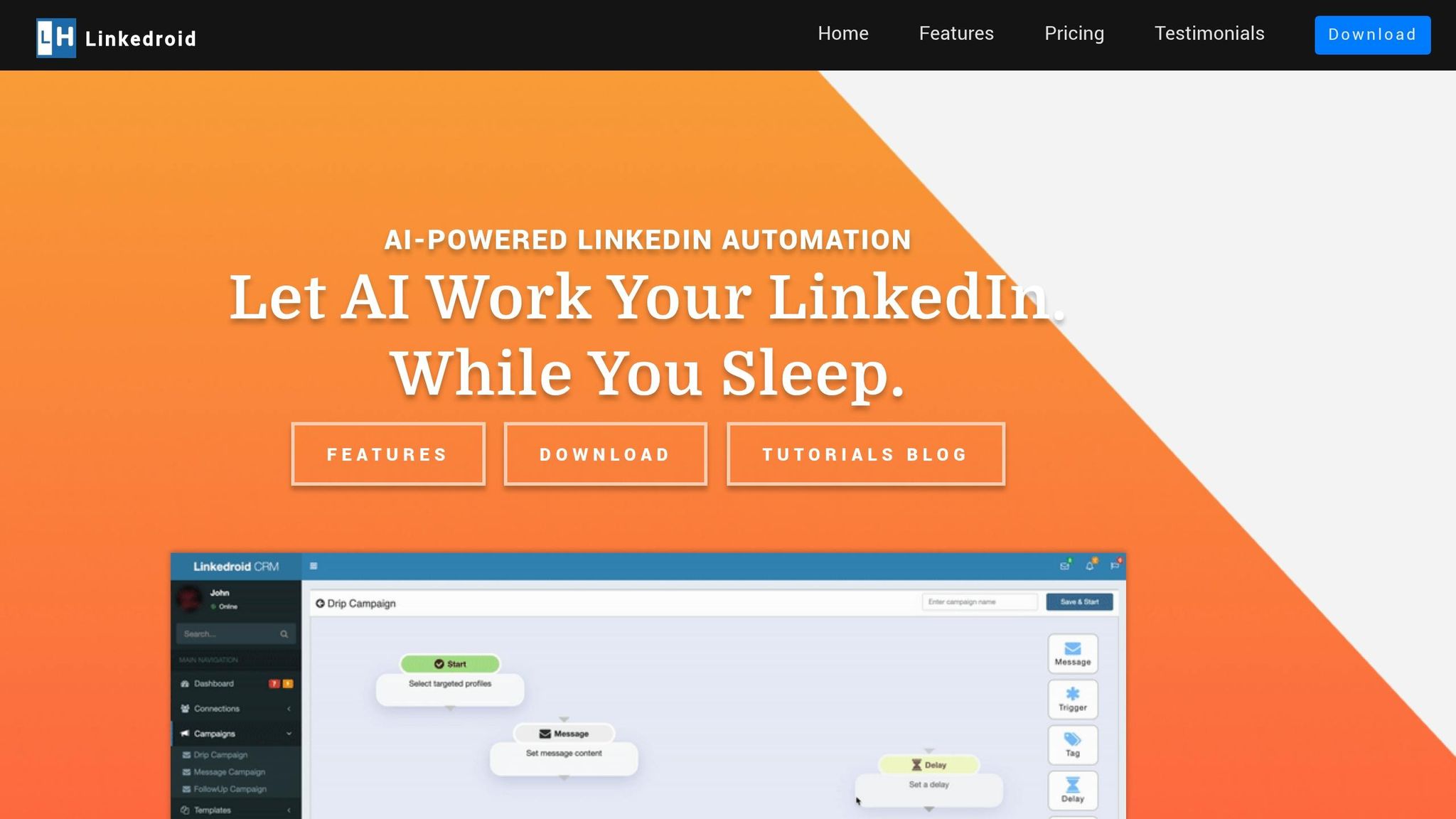
For anyone diving into LinkedIn outreach, Linkedroid keeps things simple and efficient. It takes the headache out of repetitive tasks and focuses entirely on outreach and connection management. Unlike a full-blown CRM like Kanbox, this tool zeroes in on running streamlined campaigns and follow-ups, making it perfect for users who want to avoid the extra complexity of a full CRM system.
Key Features
- Automated connection requests with customizable message templates.
- Sequential follow-ups that kick in after a connection is accepted or after a preset delay.
- A clean, user-friendly dashboard to track your campaign progress.
- Tools to filter and organize your LinkedIn network for better targeting.
- Built-in activity limits to ensure compliance with LinkedIn's usage policies.
Pros
- Super simple campaign setup - no learning curve here.
- Daily activity caps to help avoid triggering LinkedIn's detection systems.
- Can juggle multiple campaigns at once without breaking a sweat.
- Works well for both building new connections and maintaining existing ones.
Cons
- Lacks the deeper CRM integrations that tools like Kanbox offer.
- Personalization options for messages are pretty basic - might not cut it for advanced users.
- Like any automation, heavy use can still put your account at risk if you're not careful.
Best for you if…
- You're a recruiter or sales pro running LinkedIn outreach campaigns regularly.
- You want automation that’s focused and easy to manage without the bells and whistles of a full CRM.
- You need basic network organization tools that pair directly with your outreach efforts.
Next up, see how Snaily for LinkedIn Auto Connect takes these features even further.
5. Snaily for LinkedIn Auto Connect – Best for Auto-Connect and Bulk Messaging Lead Gen
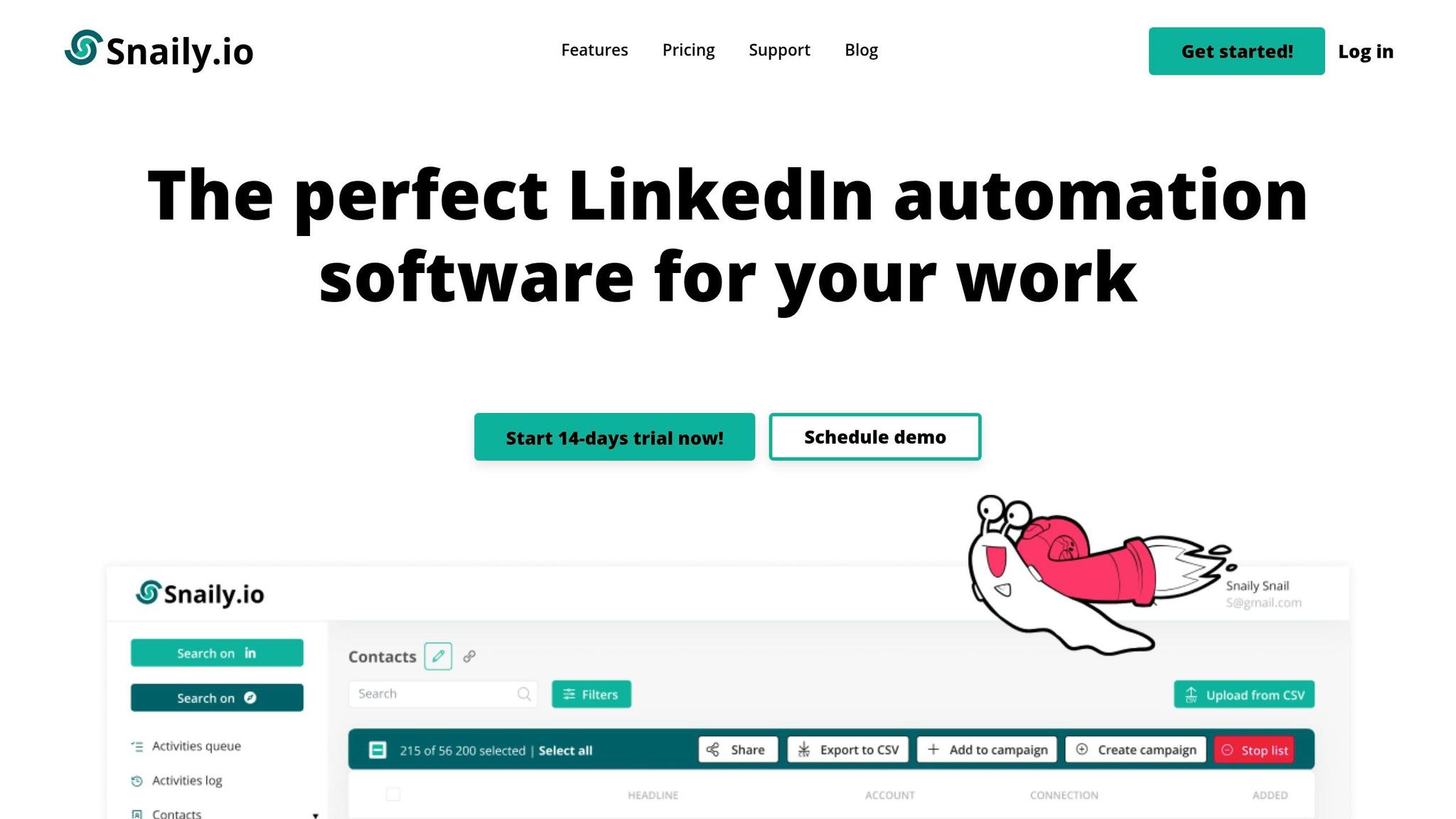
Snaily keeps things simple when it comes to LinkedIn lead generation: it automates the grind so you can focus on actual conversations. If Linkedroid is all about structured outreach, Snaily is more about speed and volume, perfect for sales reps and marketers looking to quickly fill their pipeline.
With Snaily, you can send out personalized connection requests at scale and follow up with bulk messages as soon as someone accepts. It’s all about cutting out the repetitive clicks and getting straight to the point. The tool prioritizes efficiency over complexity, which makes it particularly handy for fast-paced campaigns.
Key Features
- Automates bulk connection requests by targeting profiles based on industry, job title, or location.
- Enables bulk messaging to first-degree connections, complete with customizable templates.
- Built-in daily send limits to stay within LinkedIn's safety guidelines.
- A straightforward campaign dashboard to track acceptance rates and message delivery.
Pros
- Super easy to use - most people can start within minutes.
- Bulk messaging saves a ton of time on manual outreach.
- Daily caps help lower the risk of LinkedIn flagging your account.
- Great for quickly growing your network during early-stage lead generation.
Cons
- Limited message personalization - generic templates might hurt response rates if not tailored properly.
- No built-in CRM integration, so you'll have to track follow-ups on your own.
- Pushing the tool too hard beyond its limits can still put your LinkedIn account at risk.
- Not suited for outreach where building deeper, quality relationships is the goal.
Best for you if…
- You're in sales or marketing and need to scale top-of-funnel leads fast.
- You want a simple, no-fuss automation tool without the complexity of a full CRM.
- You're fine handling follow-ups manually after making those initial connections.
Up next, find out how LinkedIn to Airtable can simplify data exports and seamlessly integrate profiles into your workflow.
6. LinkedIn to Airtable – Best for One-Click Profile Data Export
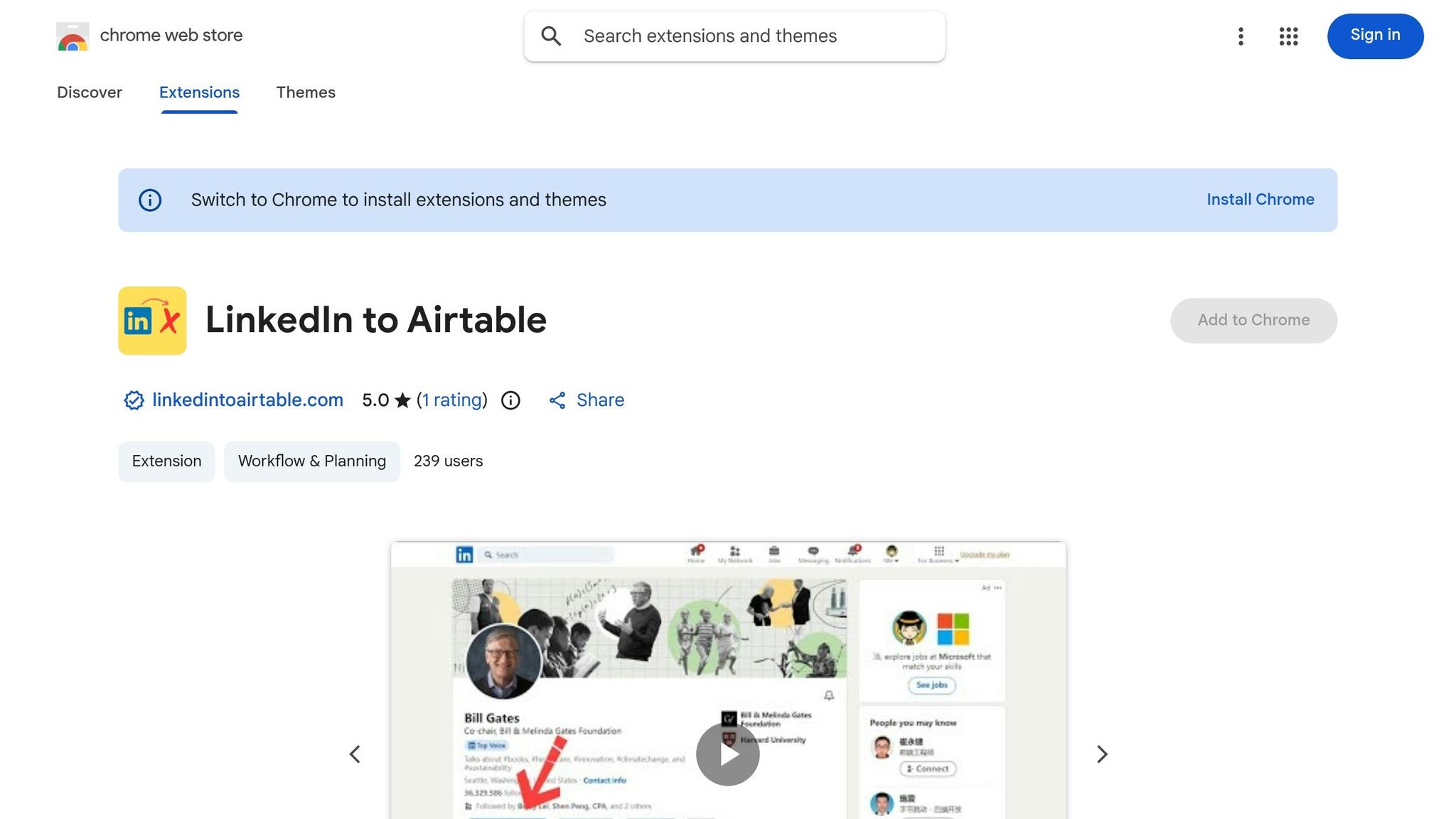
Ever wasted 20 minutes copy-pasting a prospect's details - name, title, company, and URL - into a spreadsheet? LinkedIn to Airtable is here to save you from that grind. With just one click, this browser extension sends LinkedIn profile data directly into your Airtable base. No more manual entry, no more juggling tabs, and no more errors from rushing through repetitive tasks.
The tool integrates seamlessly into your browser and activates whenever you're viewing a LinkedIn profile. Click the button, and voilà - your contact is logged in Airtable, perfectly aligned with the right fields. For recruiters building pipelines or sales teams tracking leads, this streamlined process can save hours over the course of a day.
Key Features
- Pushes LinkedIn profile data (name, title, company, location, profile URL) into Airtable with a single click.
- Automatically maps fields to ensure data lands in the correct Airtable columns.
- Works with standard LinkedIn profiles and Sales Navigator views.
- No extra dashboard - just a browser extension that activates directly on LinkedIn profiles.
Pros
- Cuts out manual data entry, making prospect and candidate tracking effortless.
- Airtable’s flexibility allows you to create custom views, like CRMs, kanban boards, or recruitment trackers, around the imported data.
- Super simple to set up - if you’re already using Airtable, you’ll be up and running in minutes.
Cons
- Only works if your team already uses Airtable; there’s no direct export to other platforms like Google Sheets.
- Doesn’t include email addresses or phone numbers - just the public profile fields.
- No bulk export option - you’ll need to export profiles one at a time.
Best for you if…
- You rely on Airtable for CRM or talent tracking and want LinkedIn data to flow in effortlessly.
- You’re a recruiter, founder, or sales rep reviewing dozens of profiles daily and need structured records without extra effort.
- You prefer a lightweight, focused tool over a complex automation suite.
Next, let’s dive into how the Comment Generator for LinkedIn can keep you active and visible without burning hours on crafting perfect replies.
7. Comment Generator for LinkedIn – Best for Fast, Authentic Engagement
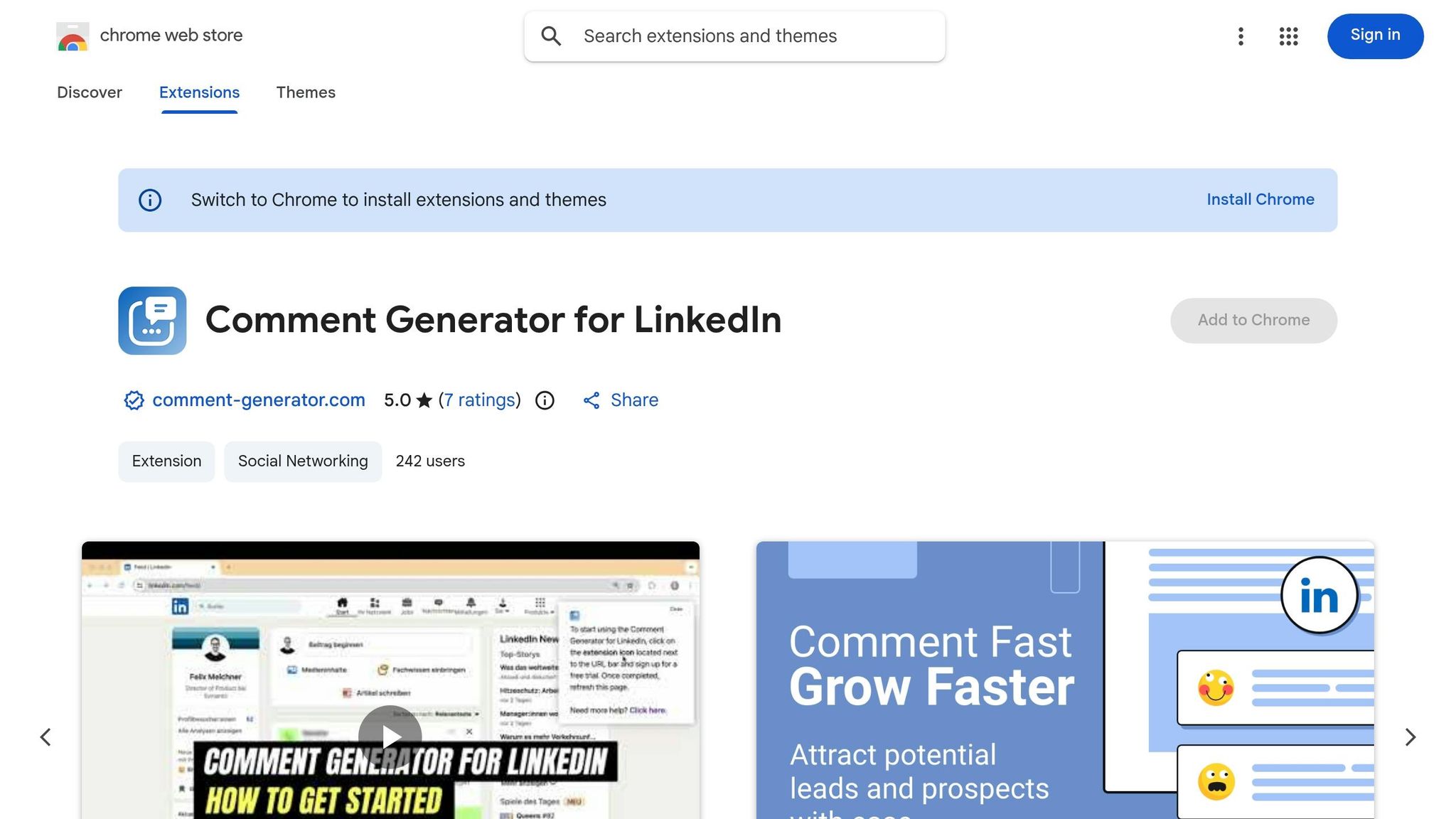
For anyone trying to stay relevant on LinkedIn in 2026, this tool feels like a lifesaver. Let's face it - commenting consistently on posts can be a grind, especially when you're staring at yet another blank comment box. The Comment Generator for LinkedIn steps in to make the process faster and smarter. It analyzes the post you're viewing and spits out a context-aware comment in seconds. Plus, with tone options like Casual, Insightful, Helpful, Inspiring, or Witty, it keeps your responses aligned with both the post and your personal style. The best part? You still get to review and tweak every comment before it goes live, so it feels authentically you.
Key Features
- Scans post content to suggest comments that actually make sense in context.
- Offers tone options - Casual, Insightful, Helpful, Inspiring, Witty - to match your vibe or the post's mood.
- Tailors suggestions to goals like networking, sales, recruiting, or partnerships.
- Built-in daily limits to keep your activity looking natural (no spammy overkill here).
- Keeps you in control with manual review - no auto-posting or bot-like behavior.
Pros
- Saves time while keeping your comments relevant and personalized.
- Lets you customize the tone, so your voice stays consistent and avoids sounding robotic.
- Manual review safeguards your LinkedIn account from automation risks.
- A stellar 5.0/5 Chrome Web Store rating shows users genuinely love it.
But, like any tool, it’s not without a few quirks.
Cons
- Daily limits - 10 comments on the free plan, 20 on the $15/month Pro plan - might frustrate power users.
- Manual review means it’s not a full automation solution if that’s what you’re after.
- It’s LinkedIn-only, so if you’re juggling multiple platforms, you’ll need other tools.
Best for you if…
- You’re a founder, consultant, or B2B sales pro who needs to stay visible on LinkedIn without spending hours crafting comments.
- You appreciate AI that assists but still lets you control the final output.
- You’re focused on building thought leadership or nurturing relationships through meaningful, tailored engagement.
Bottom line? It’s a solid pick if you want to streamline LinkedIn interactions without sacrificing authenticity.
8. Replya – Best for Free AI-Powered LinkedIn Engagement
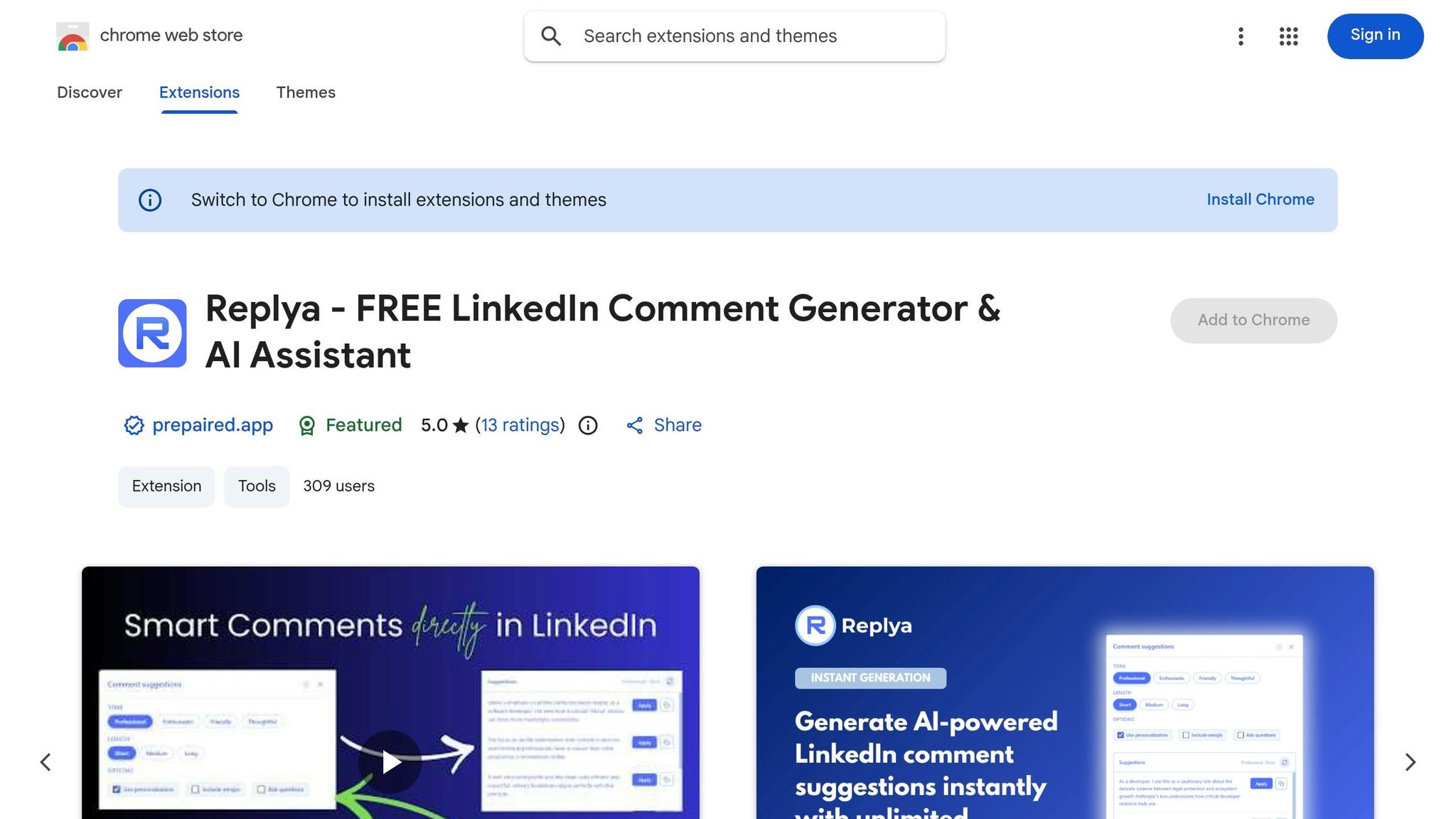
When it comes to AI tools for LinkedIn, Replya is like the no-cost sidekick you didn’t know you needed. While LinkedGPT might be the premium choice, Replya takes the spotlight for anyone looking to boost their LinkedIn activity without spending a cent. It’s designed to handle one thing exceptionally well: generating comments that fit seamlessly into LinkedIn conversations.
Here’s how it works: Replya scans the post you’re viewing, whips up a comment that fits the tone and context, and lets you post it with a single click. Plus, you can tweak the tone so it sounds like you - not some generic bot response. It’s all about keeping your interactions smooth and professional without the endless typing sessions.
Key Features
- AI-powered comment suggestions tailored to match the post’s context
- Adjustable tone settings to fit your professional style
- One-click posting for effortless engagement
- 100% free - no hidden fees or subscription traps
Pros
- No cost - completely free to use
- Simplifies high-volume commenting with a one-click process
- Tone adjustments make comments feel personal and genuine
- Boasts a perfect 5.0/5 rating on the Chrome Web Store
Cons
- Limited to LinkedIn comments - doesn’t support broader engagement or outreach tasks
Best for you if…
- You want a free AI tool that saves time and effort without compromising quality
- You’re a job seeker or social seller aiming to stay visible without drafting every comment yourself or using other AI-powered assistants to boost visibility
- You need a lightweight, no-frills tool that fits right into your LinkedIn routine
Bottom line? Replya is perfect for keeping your LinkedIn activity rolling without the stress of manual commenting.
9. Pollen for LinkedIn – Best for Private, On-Profile Note-Taking
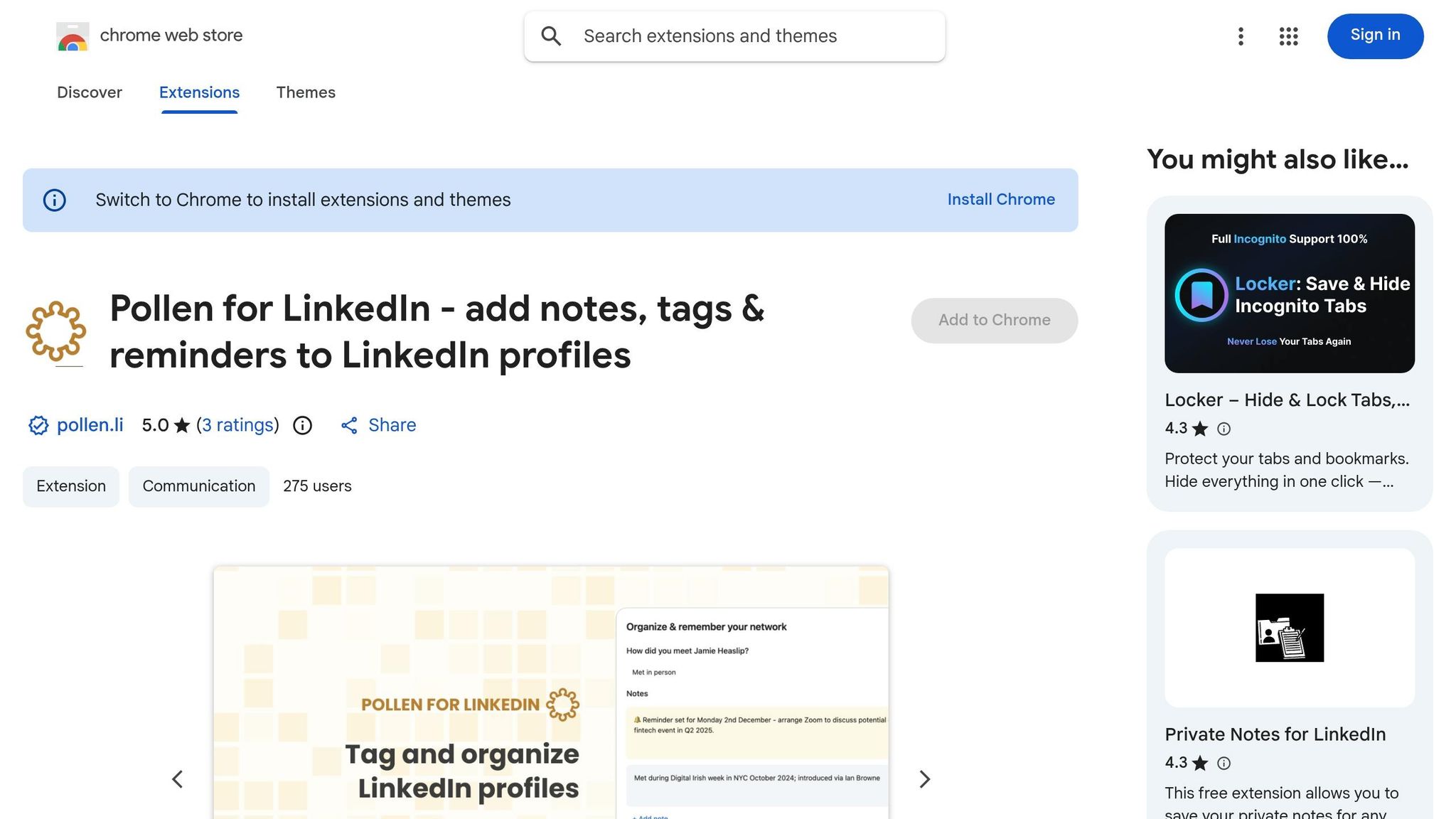
Imagine having sticky notes right on LinkedIn profiles - without the clutter or extra apps. That’s Pollen. It’s a browser extension that lets you jot down personal notes, tag profiles, and set follow-up reminders directly on LinkedIn. No more juggling spreadsheets or flipping between tabs just to keep your outreach organized.
Here’s the kicker: Pollen keeps everything private by storing your notes and tags locally on your device. Nothing gets sent to external servers, and it doesn’t require you to log in to LinkedIn or share browsing data. It’s a simple, privacy-focused tool for anyone who wants to stay organized without overcomplicating things.
Key Features
- Profile notes – Add your thoughts or details directly to LinkedIn profiles.
- Custom tags – Sort and label contacts with tags like “potential client” or “follow up later.”
- Reminders – Set alerts so you don’t forget to check back at the right time.
- Local storage – Keeps all your data on your device, ensuring privacy.
Pros
- Your data stays secure since it never leaves your browser.
- It’s lightweight and works quietly without disrupting your workflow.
- Keeps your LinkedIn prospecting neat without needing a full CRM.
- Doesn’t interact with LinkedIn’s backend, reducing account risks.
Cons
- Notes and tags don’t sync across devices - what’s on one computer stays there.
- There’s no backup or export option, so a browser reset means starting from scratch.
- Not ideal for teams or anyone needing shared access to notes.
Best for you if…
- You’re a solo recruiter or salesperson looking for a straightforward way to track prospects privately.
- You want a tool that doesn’t mess with LinkedIn’s backend, keeping your account safe.
- You prefer a lightweight option over committing to a bulky CRM.
Bottom line? Pollen is perfect for staying organized on LinkedIn without sacrificing privacy or simplicity. Just keep in mind that it’s best suited for solo users who don’t need syncing or team features.
10. Alara – Best for LinkedIn Content Creation and Profile Growth
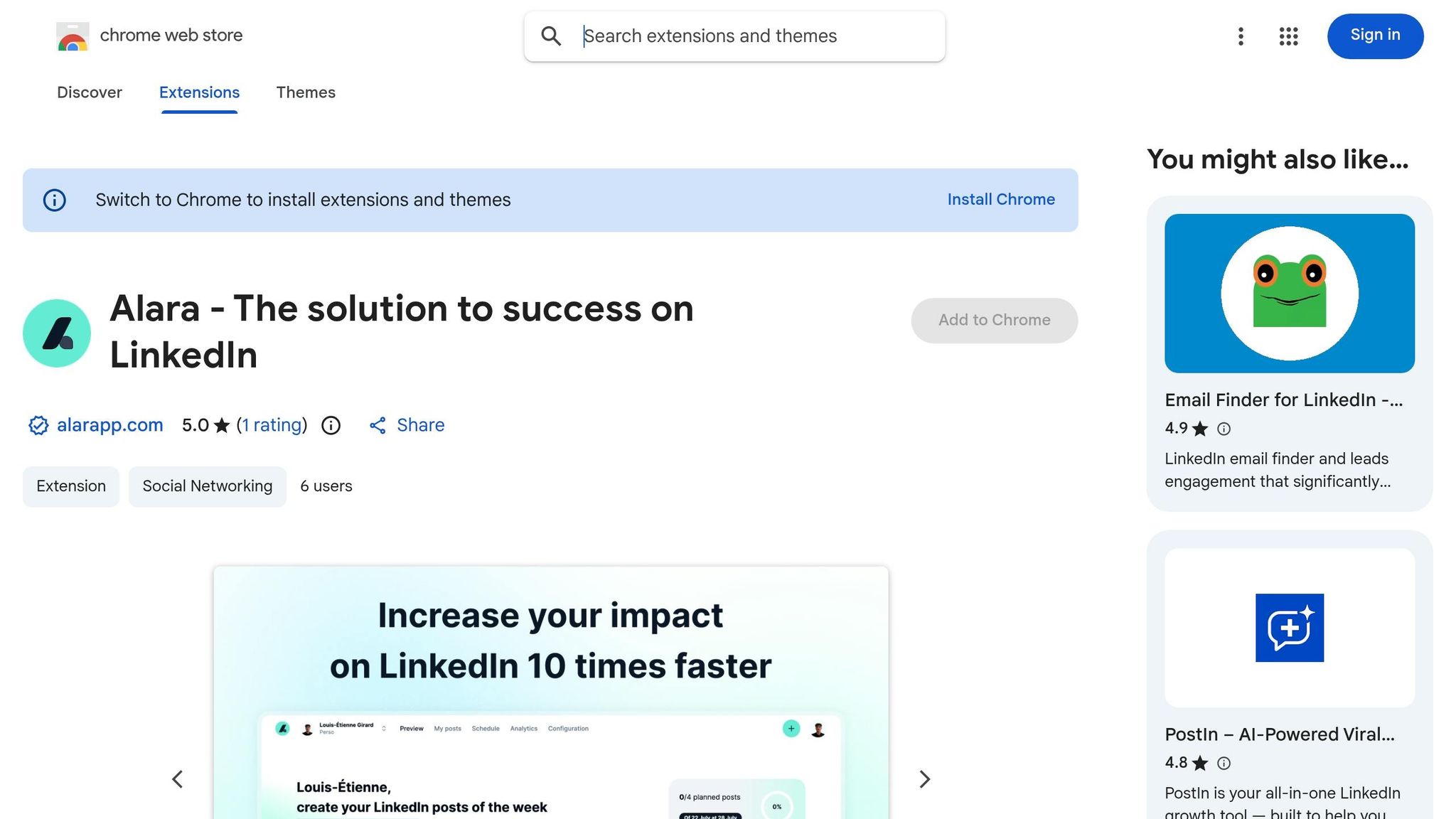
For anyone serious about growing their LinkedIn presence, Alara is a tool worth considering. It’s not just about posting content; it’s about making sure everything you share looks polished and professional. Alara simplifies the entire process - content creation, planning, and publishing - so you can focus on building a standout profile.
One thing that really caught my eye? Its FeedReady extension. Before you upload an image, Alara scrubs metadata like EXIF, XMP, C2PA, and AI tool tags. Why does that matter? Because clean visuals load better and stay algorithm-friendly, giving your posts a better shot at standing out. Here’s what else makes Alara a smart pick for LinkedIn creators:
Key Features
- Image metadata cleanup: Automatically removes hidden data from images for a smoother upload experience and better compatibility with LinkedIn's algorithms.
- Post planning tools: Lets you organize and schedule your LinkedIn content directly from your browser - no need for extra apps.
- Content creation support: Offers guidance on drafting and refining posts to maximize engagement.
- Growth analytics: Tracks post performance so you can see what’s working and adjust your strategy accordingly.
Pros
- Keeps your visuals sharp and optimized by cleaning up hidden metadata.
- Combines content planning, creation, and scheduling in one place.
- Perfect for creators looking to maintain a polished, professional LinkedIn presence without a steep learning curve.
Cons
- Doesn’t cover outreach, prospecting, or CRM tasks - it's strictly content-focused.
- Not ideal for users who post infrequently or rely only on text-based content.
- The metadata cleanup feature might feel too niche for casual users.
Best for you if…
- You’re a regular LinkedIn poster who prioritizes high-quality visuals and engagement.
- You want your images to display perfectly across all devices and feed formats.
- You’re looking for a one-stop tool to plan, create, and track LinkedIn posts.
The bottom line? Alara is a solid pick for creators who treat LinkedIn as more than just a networking platform - it’s for those aiming to make an impression.
Which LinkedIn Chrome Extension Should You Choose?
Let’s break it down: if tasks like manual searches, endless CRM copy-pasting, or crafting comments eat up your day, there’s a LinkedIn Chrome extension ready to save you time. The key is picking the one that tackles your biggest bottleneck.
Here’s a quick guide to help you decide:
| Goal | Best Fit | Why It Works |
|---|---|---|
| Faster people/company search | Instant Search, Power Search | Cuts down search time before outreach. |
| Automating outreach + light CRM | Kanbox, Linkedroid, Snaily | Rocketbrew, Manages connection requests, follow-ups, and pipelines seamlessly. |
| Writing better comments faster | Comment Generator, Replya | Delivers AI-driven, natural-sounding replies. |
| Exporting data to your workflow | LinkedIn to Airtable, Pollen | Simplifies data exports and profile notes - no more copy-pasting. |
| Content creation and post growth | Alara | Combines planning, content creation, and performance tracking in one tool. |
For heavy prospecting, Kanbox is a standout, supporting up to 2,500 leads daily through Sales Navigator searches. On the engagement side, Replya and Comment Generator help you stay authentic, avoiding the pitfalls of spammy bulk interactions.
Here’s my take: don’t overload your workflow with overlapping tools. Stick to ONE tool per task - whether it’s search, outreach, or content - to stay efficient and protect your LinkedIn account from unnecessary risks.
Up next: how to use these tools safely without jeopardizing your LinkedIn profile.
How to Use LinkedIn Extensions Without Risking Your Account
When it comes to LinkedIn, not all tools are created equal. Tools like Pollen, Comment Generator, or LinkedIn to Airtable are designed to assist your efforts, not replace them. They help you streamline tasks like posting, commenting, or organizing leads without crossing the line into spammy automation. On the flip side, aggressive bots that blast out hundreds of connection requests or messages can easily trigger LinkedIn's security filters - and that's a risk you don’t want to take.
The key? Always enable "human-in-the-loop" mode. This means nothing gets posted, sent, or connected without your explicit approval.
"Human-in-the-loop: you review and approve every suggestion before it posts. Nothing goes live without you." - Commenty
Once you've got that safeguard in place, the next step is to manage your activity volume. For example, top comment tools often limit free users to 10 AI-generated suggestions daily and Pro users to 20. Why? Not because the tech can't handle more, but because LinkedIn's algorithm favors natural-looking activity. If you're using outreach tools like Kanbox, stick to their daily limits. Users who follow these guidelines typically see connection acceptance rates of 15–30% and message response rates of 10–20%. Push beyond those limits, though, and those numbers tend to drop fast.
Another crucial tip: stick to one automation tool per task. Running multiple extensions for outreach at the same time? That’s a recipe for trouble. Instead, use one tool for each job - maybe one for search, another for outreach, and a third for content. This keeps your action count low and your account off LinkedIn's radar.
Bottom line? Play it safe, and you’ll see steady LinkedIn growth well into 2026 and beyond.
Conclusion
The best LinkedIn Chrome extension in 2026? It’s the one that actually fits how you work. If lead hunting is eating up your time, tools like Instant Search or Power Search can cut through the noise fast. Struggling with outreach chaos? Kanbox or Linkedroid bring much-needed order to your pipeline. And for staying visible without the mental drain, Comment Generator or Replya keep your engagement game strong without overloading you. The trick is picking tools that solve your specific bottlenecks.
From reducing endless manual searches to making outreach smoother, these tools tackle LinkedIn’s biggest pain points. The key is matching the right tool to the right job. For example, use a scraper or outreach tool for finding leads, an engagement tool to nurture connections, and something like LinkedIn to Airtable or Pollen to keep your data organized and actionable. But don’t overdo it - stacking too many automation tools often creates more hassle than help.
One last thing: Keep your activity on LinkedIn natural and balanced. That’s the difference between consistent growth and getting flagged. All the extensions mentioned here are designed with that in mind, and when used thoughtfully, they can save you hours of work while keeping your LinkedIn strategy solid well into 2026 and beyond.